1 Start the setup file and follow the instructions of the wizard. If the installation is finished, start the !MC5 registration via Start / Programs / MC5 / Online registration. Without registration !MC5 is not operational!
2 In the registration wizard, select Request ademo license online. At this point, make sure that the Bartsch Software license server is accessible from this system.

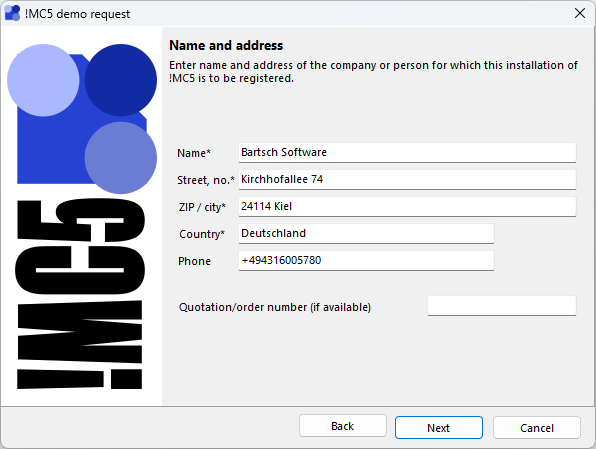
3 Now enter the name and address of the company or person to whom your installation of !MC5 should be registered. If you have already received an offer or order number from Bartsch Software, please enter it in the corresponding input field. Then click on Next.
4 If the contact person for your !MC5 installation differs from the information given before, enter the corresponding information now. Then click Next again .
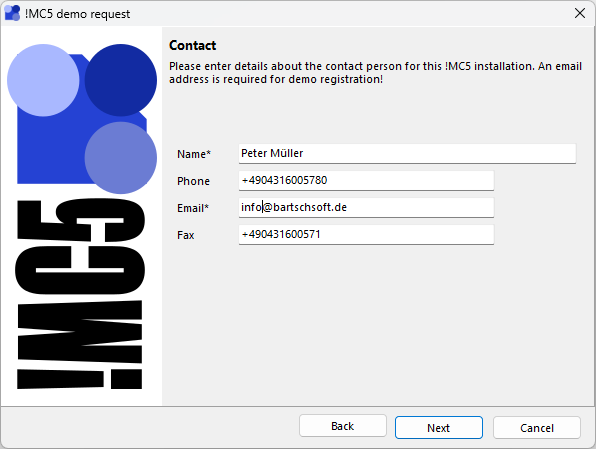
Demo registration: Email address is required!
The demo registration requires a valid e-mail address. The license key will be sent to this address. The demo version will not start without the license key.
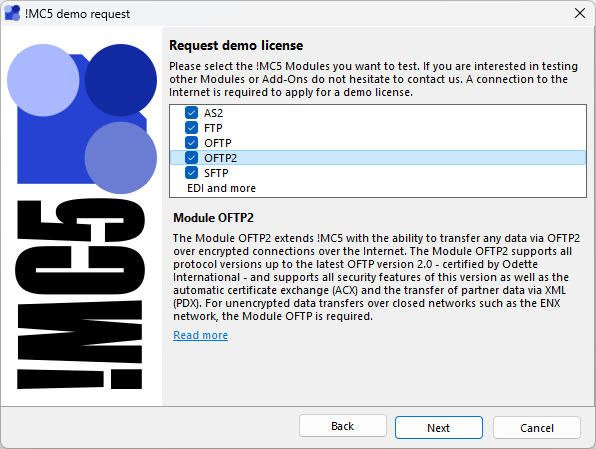
5 Now select the modules you want to test and then click Next. If a module that you want to test is not listed, you can contact us so that we can activate it for you. This also applies if you did not select a module during installation and now want to test it anyway. All modules and add-ons can also be unlocked later.
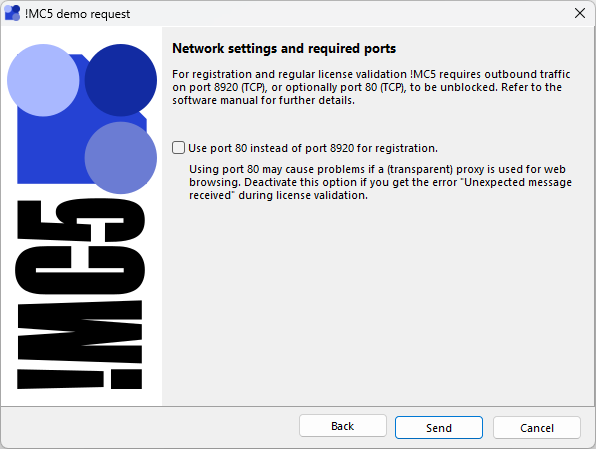
6 In the vast majority of cases, you can now click Send to send the demo license request. In rare cases, you may need to enable the option Use port 80 instead of 8920 for registration. If necessary, talk to your IT department.
4 The demo registration is now successfully completed. Now click on Finish. Once you have received an email with your license key, you can activate !MC5 for demo operation.
