The use of unencrypted FTP over the Internet is not recommended. An encrypted FTPS connection should be used for secure data transfer via FTP over the Internet. FTPS is an extension of FTP that supports TLS encryption.
No special firewall/NAT configuration is generally required for use in internal networks.
FTP/S Client
No setup is required for using the FTP Client module. All required settings are made when creating an FTP partner.
FTP/S Server
In order for the FTP/S Server module to be ready to receive data, it must first be set up. Proceed as follows:
1 Open the FTP/S server settings in the tree view via Settings / FTP/S.
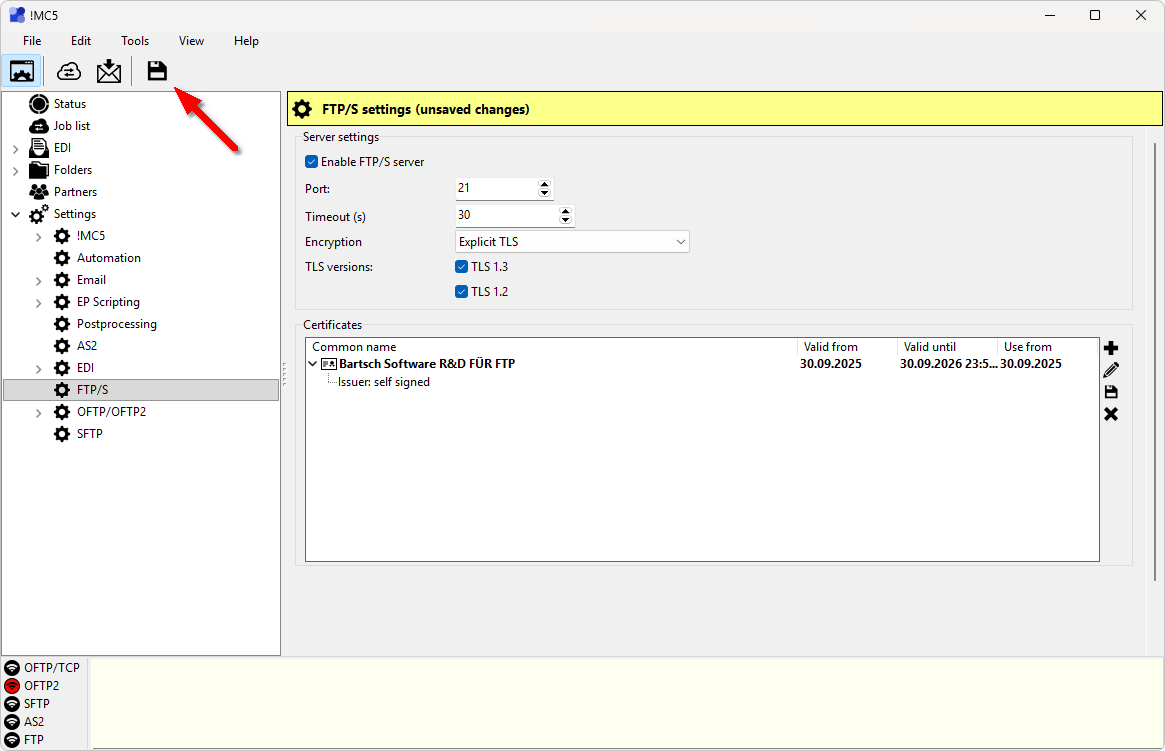
2 Activate the Enable FTP/S server option so that the !MC5 starts the FTP/S server module. In the Port field, specify the IP port on which incoming connections are accepted. Port 21 is usually used for FTP; however, other ports can also be defined. Port 990 is often used for implicit FTP. In the Timeout (s) field, you define the period of time after which the !MC5 terminates a connection if no more commands or data are transferred. In the Encryption list, you specify whether the connection is encrypted or unencrypted. The use of unencrypted connections is generally not recommended. Explicit TLS is often used. If you are not using encryption, save the settings by clicking on the floppy disk icon in the toolbar. Otherwise, continue as described below.

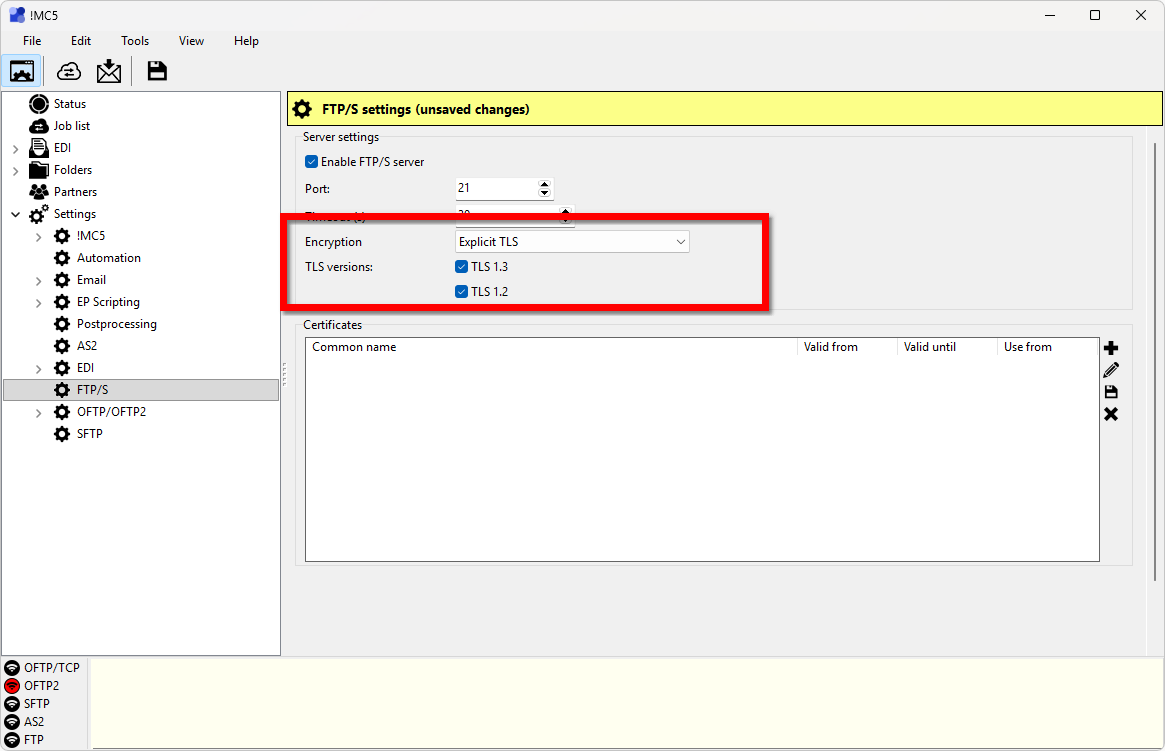
3 If you want to use encrypted connections, select the desired method in the Encryption list. You can then specify the TLS version.
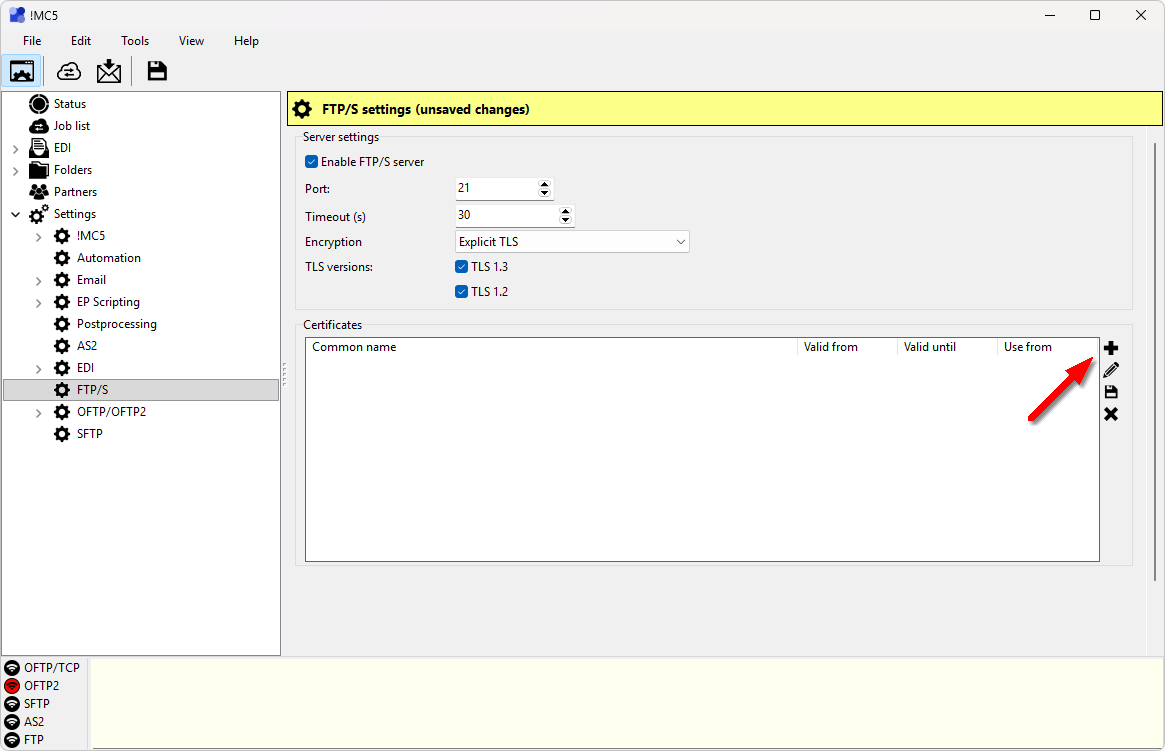
4 A separate certificate with a private key is required for encrypted transmissions. Click on the plus sign in the Certificates group to import a certificate.
5 You now have the choice between different methods of selecting or creating a certificate. Which one you have to choose depends on whether you already have a suitable certificate or have to create one first. If you already have a certificate, you can import it from a file or select it from the Windows certificate store. For the latter, the certificate must be saved in your personal Windows certificate store! If you do not yet have a certificate, you can create a self-signed certificate. Select the appropriate import method and follow the instructions of the certificate wizard.
Certificate must have a private key
Your own certificates must always be imported with a private key. If it is imported from a file, it must be a file with the extension .pfx and you will be asked for the password for the file during import.

6 Now save the FTP/S server settings and set up your FTP partners if required.