The following example shows how to use the add-on EP Scripting to realise file transfer via X.400 using the program FileWork by T-Systems. The example is kept simple. Both Windows Batch Scripting and the FileWork Scripting Interface offer advanced features for more complex processing, that demonstrated in the example.
FileWork setup
For correct control, some settings have to be made in the FileWork program:
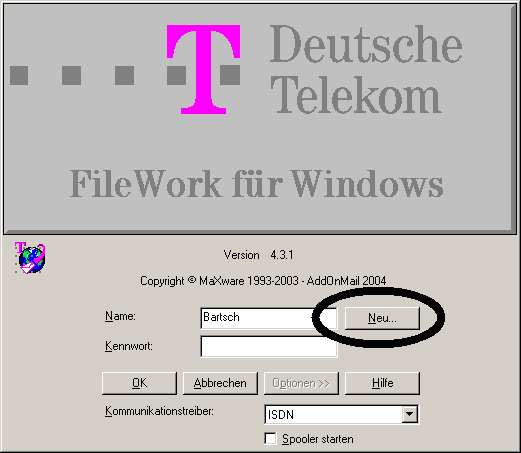
1 First, enter the access data for the X.400 box in the initial screen.
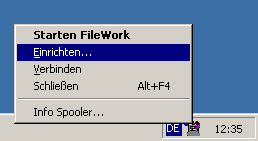
2 Call the program Spool32.exe from the directory "C:\Programme\Telebox 400". Then right-click on the icon at the bottom right and select Setup (Einrichten).
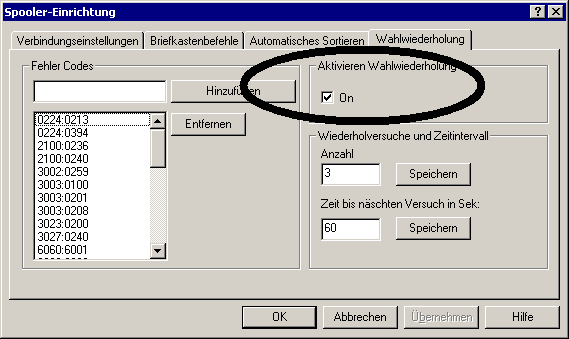
3 The following options must be set or deleted in any case: The status at end of connection (Status nach Verbindungsende) must be switched off in any case, as this interrupts the automatic sequence. Redialling (Wahlwiederholung) is useful. The intervals can be set as required.

Create outbound script
The first step in !MC5 is to create a new sending script:
1 Open the EPS settings and click Create new script.

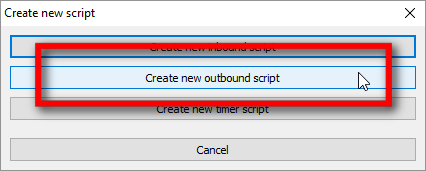
2 Click Create new outbound script.
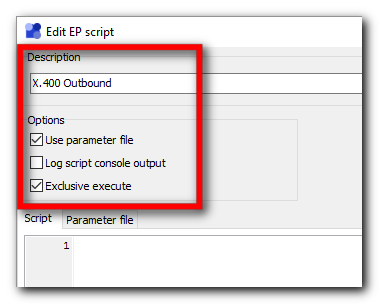
3 Enter a script description (this description will be used as the script name), e.g. "X.400 sending". Then activate Use parameter file and Exclusive execute in the Options box. The parameter file is used to control FileWork, exclusive execution of the script is necessary to not run FileWork multiple times at once, as that could cause problems when evaluating the result protocol.
4 Enter the following as script:

@ECHO OFF
"C:\Programme (x86)\FWTools\FW_SI.exe" /S=%VAR:ParamText% /L=Bartsch
FOR /F "usebackq tokens=1,3" %%A IN ( "C:\ProgramData\Bartsch Software\MC5\Log\Protokoll.res" ) DO (
IF "%%A"=="Bodypart:" (
ECHO %%B
IF NOT EXIST "%%~dpBBackup" MD "%%~dpBBackup"
MOVE /Y "%%B" "%%~dpBBackup\%%~nxB"
)
)
The script is made up of essentially two parts. The line "C:\Program Files (x86)\FWTools\FW_SI.exe" /S=%VAR:ParamText% /L=Bartsch calls the FileWork Script Interface and passes the parameter file as parameter /S=%VAR:ParamText%. This file contains the commands for FileWork. Login data is passed using the parameters /L=Bartsch for the login name, and, if necessary, the parameter /P=Password for the password. Replace the values with your login credentials.
The lines following the FileWork call parse the result protocol and move sent files into the sub folder Backup.The protocol gets parsed for the Text Bodypart. Each line, that starts with Bodyparts contains the name of a sent file as third "word".
The script starts with the command @ECHO OFF to suppress echoing each call to the console. Inside the loop ECHO %%B outputs each parsed file name. Those commands are for logging, if the option to log console output to the protocol is activated.
5 Next open the tab Parameter file and enter the following text:

[1]<Result>
[
Path: 'C:\ProgramData\Bartsch Software\MC5\Log'
Overwrite: 'YES'
File::
[
Fix: 'Protokoll.res'
]
]
[2]<Create>
[
To::
[
Alias: '%VAR:P1%'
]
Attach::
[
Path: '%VAR:FOLDER%'
Typ: 'IA5'
Mask: '%VAR:FILENAME%'
]
]
[3]<Access>
[
Submit: '0'
]
The parameter file contains commands for the FileWork Scriptinterface. Result defines protocol file settings. The path for the protocol has to be the same as used in the for loop of the script. The file name specified as Fix also has to be the same as the one in the loop.
Create tells FileWork to create a X.400. The receiver can either be specified using an alias, which has to be set in FileWork, or as X.400 address. If using an alias use the parameter Alias, else the parameter Address. The value for the parameter gets set using the !MC5 variable VAR:P1 which gets defined in the partner settings. The attachment type is set to IA5 in this example. VAR:FOLDER and VAR:FILENAME get replaced by the respective fields in the !MC5 partner settings.
Access tells FileWork to connect to the X.400 mailbox and send all previously created messages.
Refer to the FileWork manual for further details about available commands and parameters.
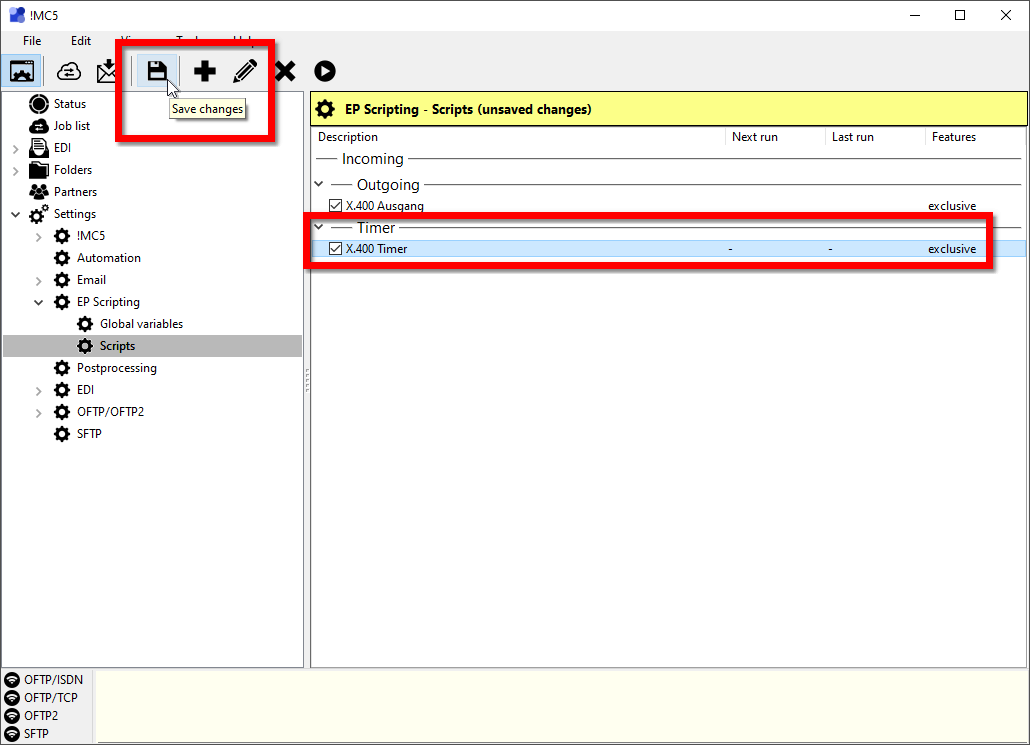
6 Save the script by clicking Save. To activate the script, check the corresponding check box and then click Save changes.

By using !MC5 script variables this script can be used to send files via X.400 for any EPS partner.
Configure EPS Partner
In order for the created script to be executed, either a new EPS partner must be created or an existing partner must be adapted accordingly. Select an existing partner by double-clicking on its name and continue with step 3. Create a new partner as follows:
1 Open the partner management and click Add a new partner.

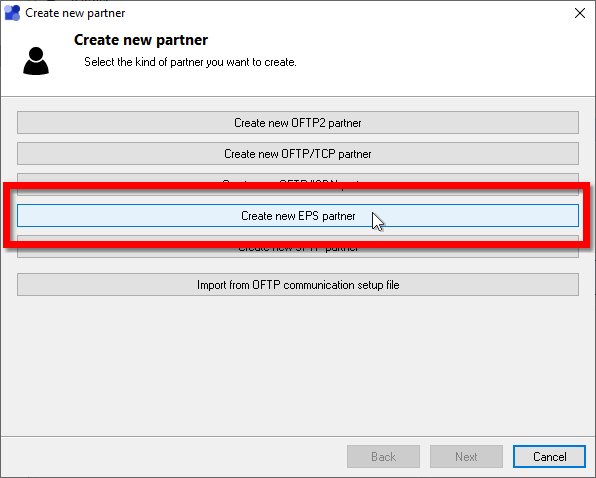
2 Click the button Create new EPS partner.
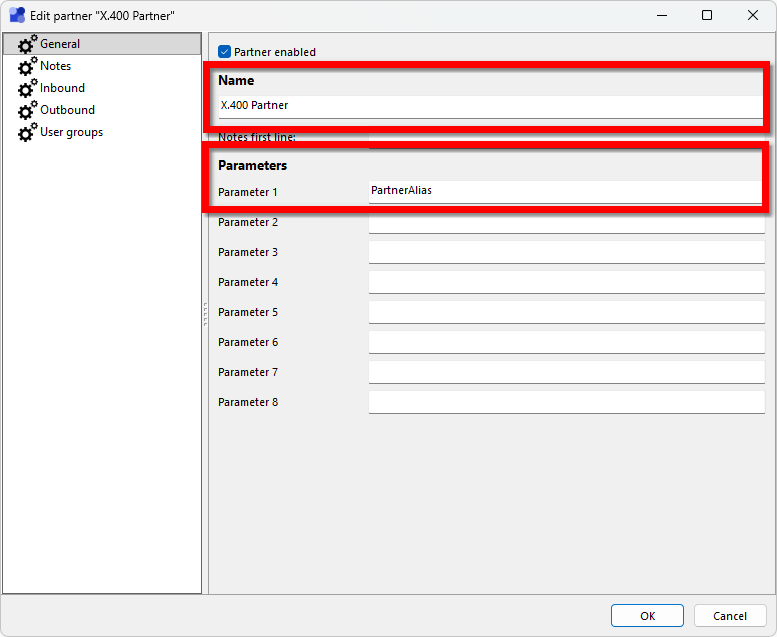
3 Enter a meaningful partner description, for example "X.400 partner". Then enter in the field Parameter 1 the alias used for this partner in FileWork. In the script above, the value of Parameter 1 is used as the alias in the parameter file. If the alias is not specified there but, for example, the X.400 address is entered directly instead, then the address must be entered in the parameter field instead of the alias entered in the parameter field instead of the alias.
4 Now switch to the Outgoing page and specify the directory for outgoing files or accept the default path. Use File mask/name to specify which files are to be sent. With "*.txt", for example, only files with the file extension "txt" would be sent. Now switch to the Outgoingpage and select the previously created script Outgoing script X.400 Outgoing under Script.
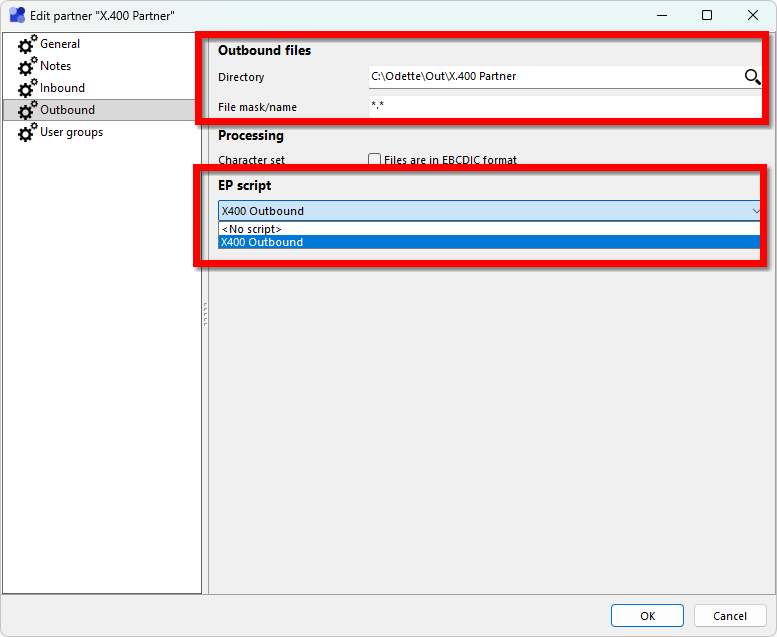
5 Save the settings by clicking OK. From now on you can use this partner in import or automatic file transmission rules to send files via X.400.
Timer script for receiving files
Receiving files via X.400 using FileWork can be done using a timer script, which executes regularly and saves new files into the incoming directory of a partner:
1 Open the EPS settings and click the Create new script button.
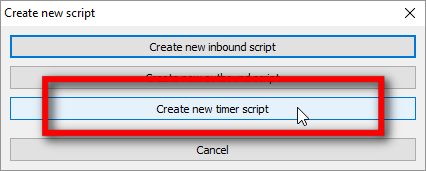
2 Click the button Create new timer script.
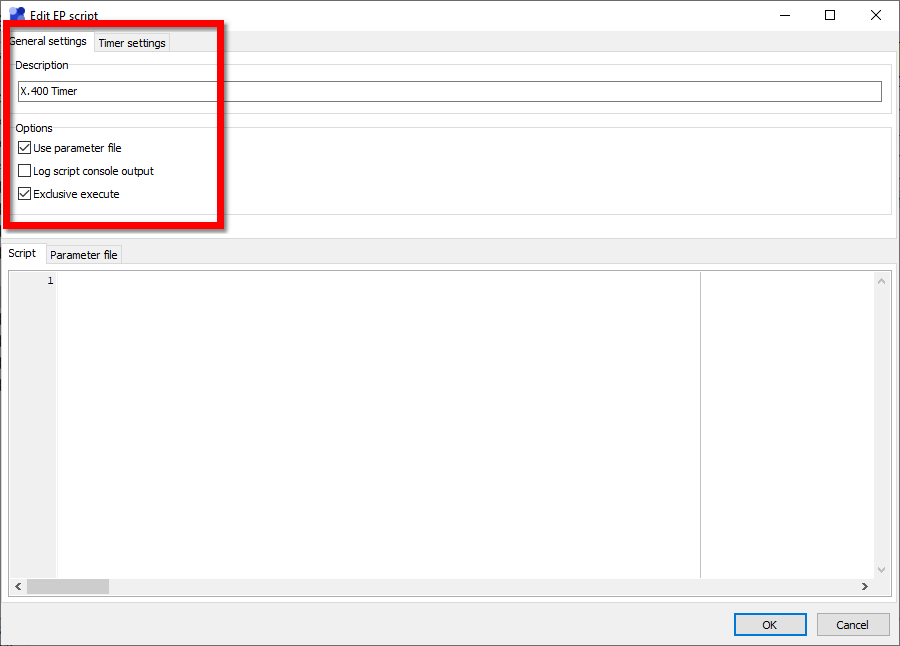
3 Enter a script description, e.g. "X.400 Timer". This description will be used as script display name throughout !MC5. Then activate the options Use parameter file and Exclusive execute.
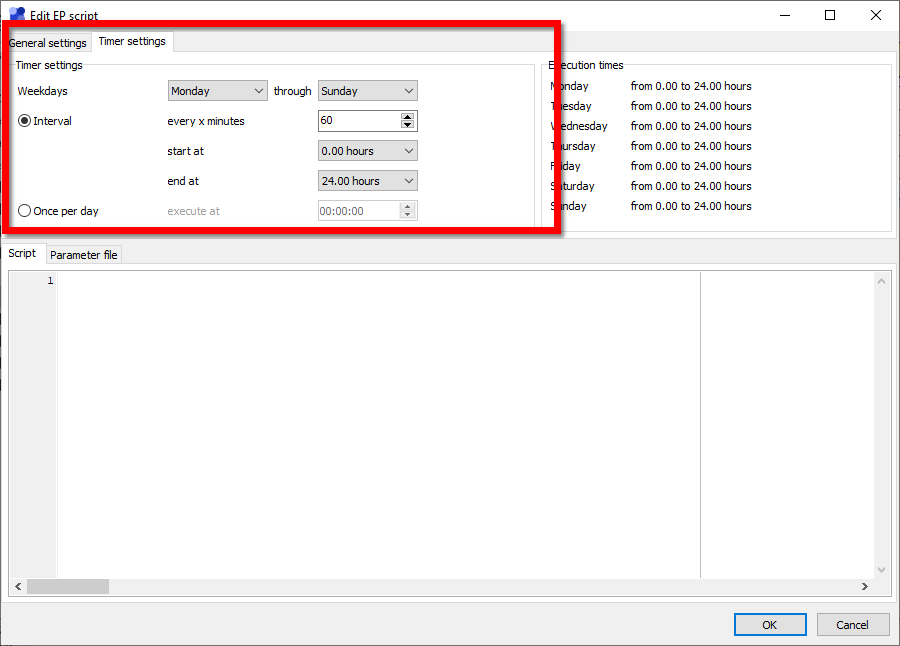
4 Switch to the Timer settings tab and define the time interval, in which the script is to be executed. You can select start and end day of week and start and end time for each day. Then select the interval in minutes in which you want the script to get executed under Execute every [...]. By default a timer script gets executed each day every 60 minutes.
5 Enter the script in the tab Script. The script itself is quite simple. Nothing has to be moved, only FileWork has to be called:

@ECHO OFF
"C:\Programme (x86)\FWTools\FW_SI.exe" /S=%VAR:ParamText% /L=Bartsch
6 Switch to the tab Parameter file an enter the following text:

[1]<Result>
[
Path: 'C:\ProgramData\Bartsch Software\MC5\Log'
ContinueOnError: 'YES'
Overwrite: 'NO'
File::
[
Fix: 'Protokoll_Polling.res'
]
]
[2]<Access>
[
ContinueOnError: 'YES'
Submit: '5'
]
[3]<Process>
[
ContinueOnError: 'YES'
Delete: 'YES'
Select::
[
Status: 'New'
]
Extract_File::
[
Path: 'C:\Odette\In\X.400Partner'
]
Extract_Data::
[
Path: 'C:\Odette\In\X.400Partner'
]
Extract_Txt::
[
Path: 'C:\Odette\In\X.400Partner'
]
]
This parameter file tells FileWork to download all new messages and save attached files to the specified partner incoming directory. Once saved there, !MC5 will detect the new files once it scans the EPS partner incoming directories and then will start processing the files.
7 Save the script by clicking Save, then activate it by checking the check box in front of the scripts entry and click Save changes. The timer script is now active.